
AI Image Upscaler for Source Photos and Product Visuals
Use the AI image upscaler to improve a single source image before it becomes a thumbnail, reference image, product shot, profile visual, or design asset. Upload one image, spend 5 credits, and prepare a cleaner still image for editing, publishing, or reuse.
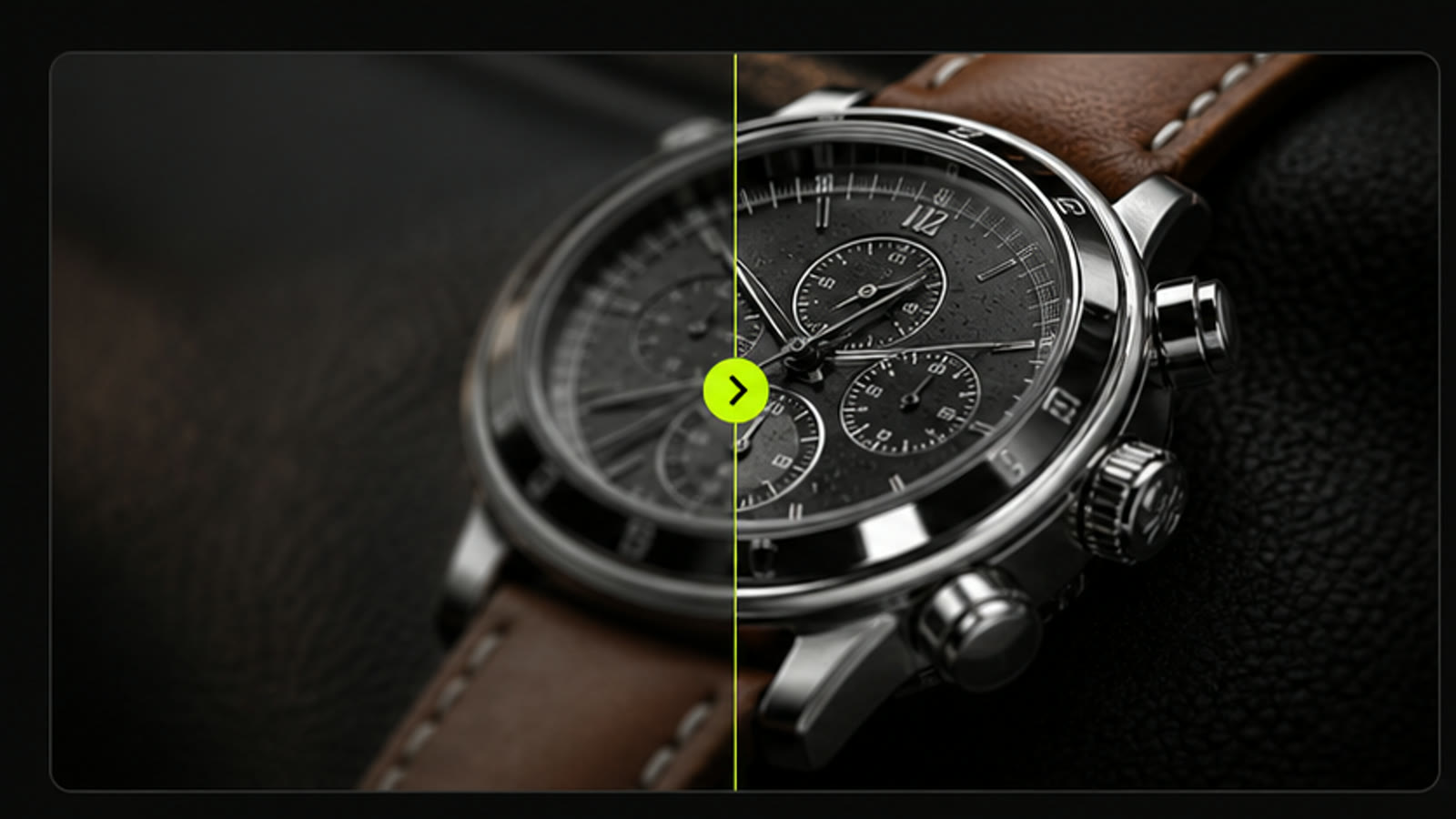
Practical fit
AI image upscaler: practical buying guide
Use this page to decide whether AI Image Upscaler is the right Clipin workflow before you spend more credits, not as a promise that every generation will be final on the first try.
When this page is a good fit
- AI image upscaler is useful when improving owned product photos, profile images, thumbnails, and reference stills before reuse.
- Choose AI image upscaler when you need to confirm that the enhanced result is sharper without making the image look fake.
- AI image upscaler is worth credits when you have several important images where cleaner detail can improve ads, profiles, or product pages.
- Use AI image upscaler output as the improved image can move into editing, background removal, thumbnails, or short-video planning.
- Review AI image upscaler results before scaling a batch.
- AI image upscaler works best when the source material and prompt are clear.
- Keep AI image upscaler realistic: very blurry or tiny sources may still have limits, so review the result before scaling a batch.
- Compare AI image upscaler variations before buying more credits.
- AI image upscaler can support paid projects when the result passes your own review.
- Start small with AI image upscaler, then spend more only after one result proves useful.
- AI image upscaler should save time without replacing judgment, rights checks, or creative review.
- Use AI image upscaler inside Clipin when you want a practical asset, not just a demo result.
Related workflows to understand first
enhance image quality helps when you want clearer source material before publishing or editing.
Use enhance image quality as a checkpoint before spending more credits.
enhance image quality should produce an asset you can inspect, keep, edit, or reject.
photo upscaler helps when you need a sharper photo for a product, profile, or creator asset.
Use photo upscaler as a checkpoint before spending more credits.
photo upscaler should produce an asset you can inspect, keep, edit, or reject.
AI image enhancer helps when you want an enhancer step before using the image in another Clipin workflow.
Use AI image enhancer as a checkpoint before spending more credits.
AI image enhancer should produce an asset you can inspect, keep, edit, or reject.
What the AI Image Upscaler Supports
the image upscaler copy is grounded in the current page behavior: one uploaded image, a required image field, a 5-credit task cost, an estimated 15-second processing label, and results that can feed image editing, product visuals, profile assets, or still-image publishing.
Single-Image Upload Flow
The current upscaler accepts one image at a time. Choose the visual that matters most, upscale it, then decide whether it should become a thumbnail, product frame, reference image, or image editor input.
Simple Run and Review Experience
Upload an image, preview it, run the task, and review the result in the generated image list. The AI image upscaler is a practical utility for selected still images, not a separate design platform.
5-Credit Asset Preparation
Each current AI image upscaler task costs 5 credits. Use it when a still image is important enough to clean up before a campaign draft, product scene, social post, profile layout, or photo upscaler workflow.
Estimated 15-Second Processing
The task configuration labels image upscaling at about 15 seconds. Queue and provider conditions can vary, so use it as an improvement pass before larger creative decisions.
Image-First Source Cleanup
Enhance image quality for assets that may later support product pages, social posts, profile visuals, thumbnails, reference boards, or editing prompts. A cleaner still can make the next creative step easier to judge.
Works Alongside the AI Image Editor
The AI image upscaler is not the same as an AI image editor. Upscaling helps prepare resolution and detail, while editing changes content, background, layout, or style. Many visual tasks can use both steps in sequence.
Useful for Product and Creator Assets
Product images, creator portraits, design frames, social thumbnails, and generated concept art can be candidates for upscaling when they need a cleaner version before review or reuse.
Practical AI Image Enhancer Positioning
The page can target image enhancement searches, but it should stay honest: The current page exposes a focused image upscaling action, not every enhancement control that a full photo suite might include.
Part of Still-Asset Planning
Use the AI image upscaler when preparing thumbnails, product references, profile images, design frames, and selected stills that need a photo upscaler pass. The goal is to improve source assets before further editing or publishing.
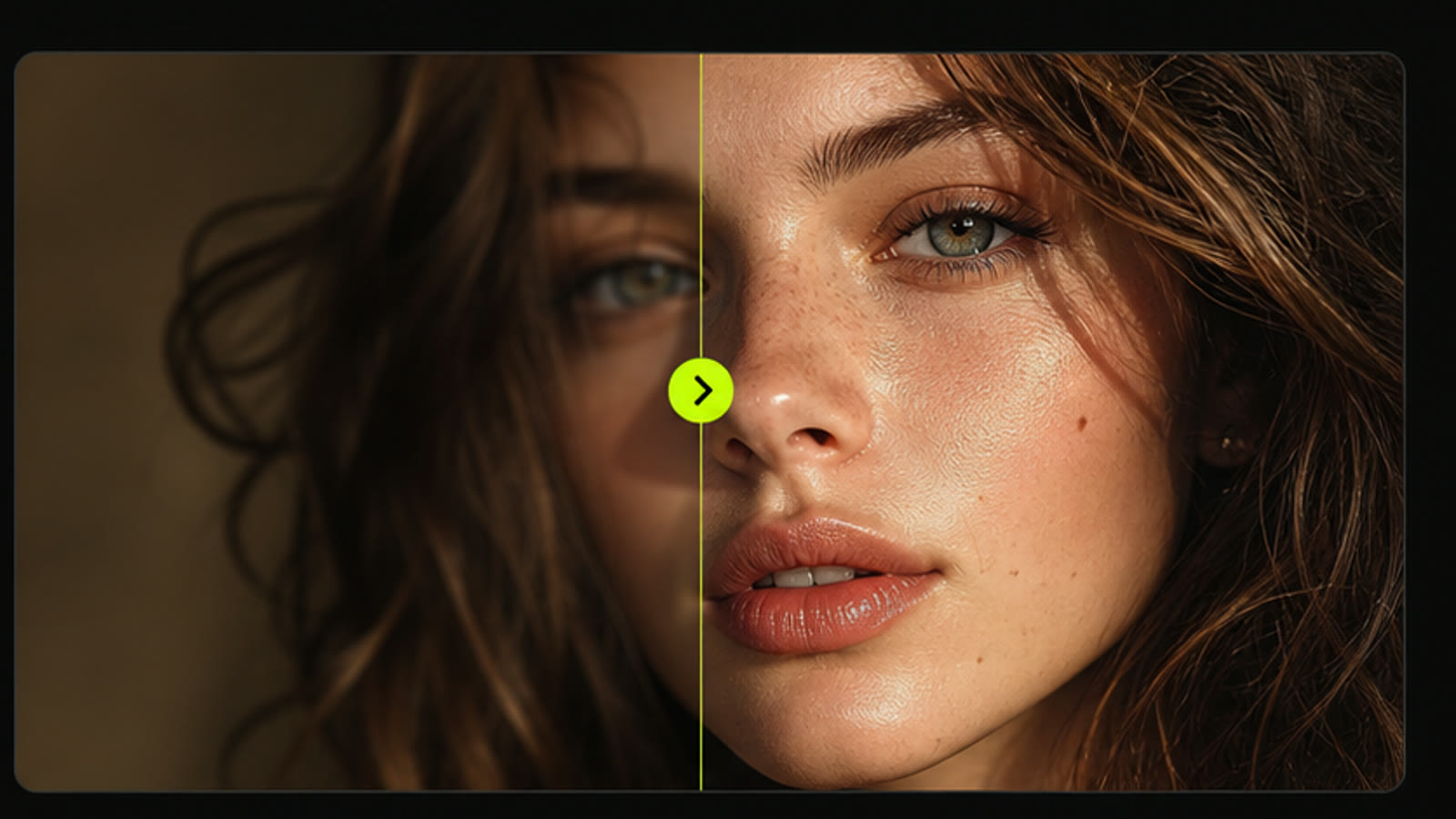
Prepare a Better Source Image
the upscaling tool is useful when a visual is promising but too soft for the next step. Upload one product frame, portrait, thumbnail, or concept still, then use the result as cleaner source material for editing, reference planning, or an image layout.
Enhance Image Quality Before Reuse
Use this image enhancement step before placing a still in a profile, product page, thumbnail, presentation, or later creative workflow. When you enhance image quality first, product edges, subject details, and visual references are easier to evaluate.
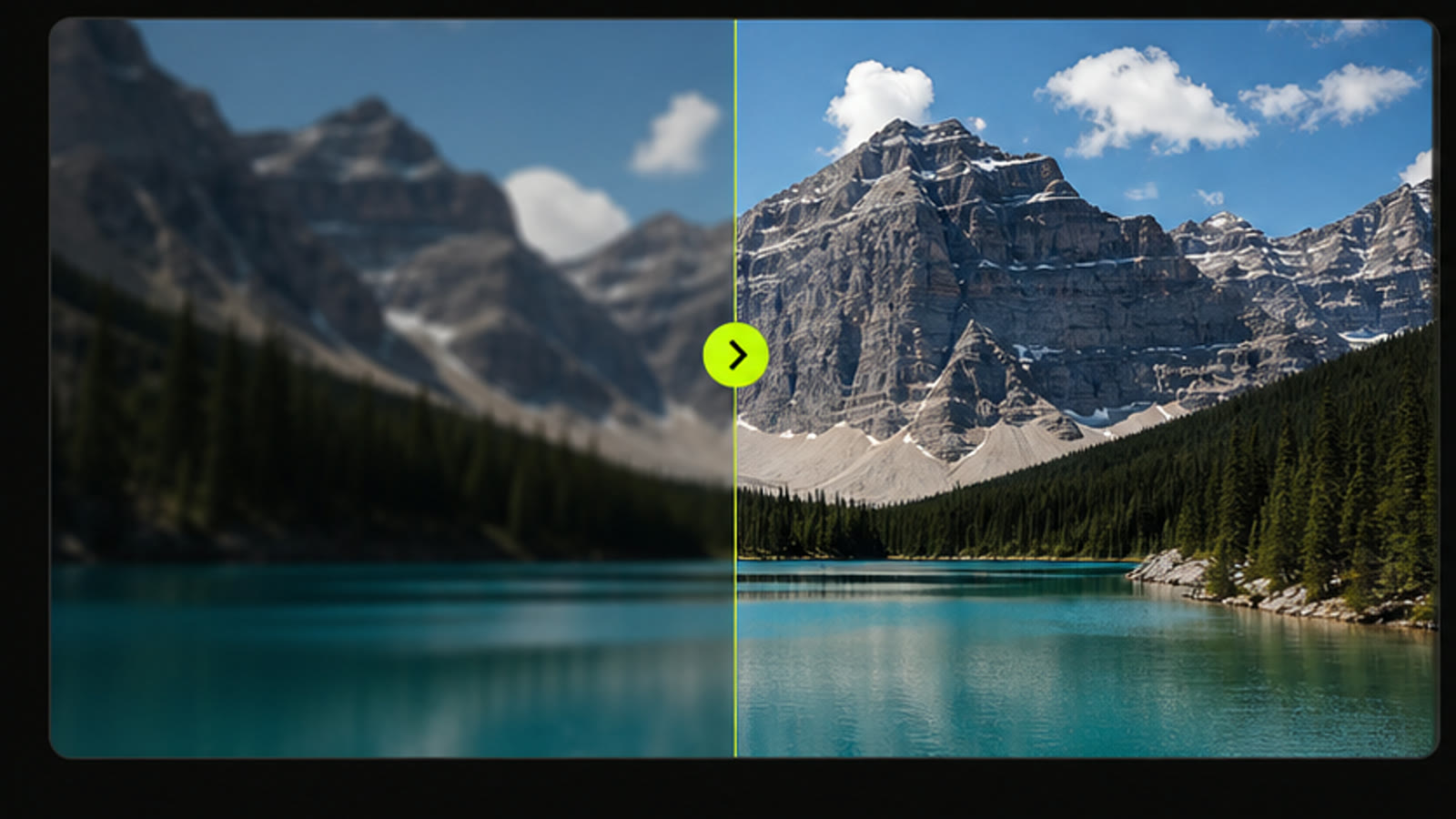
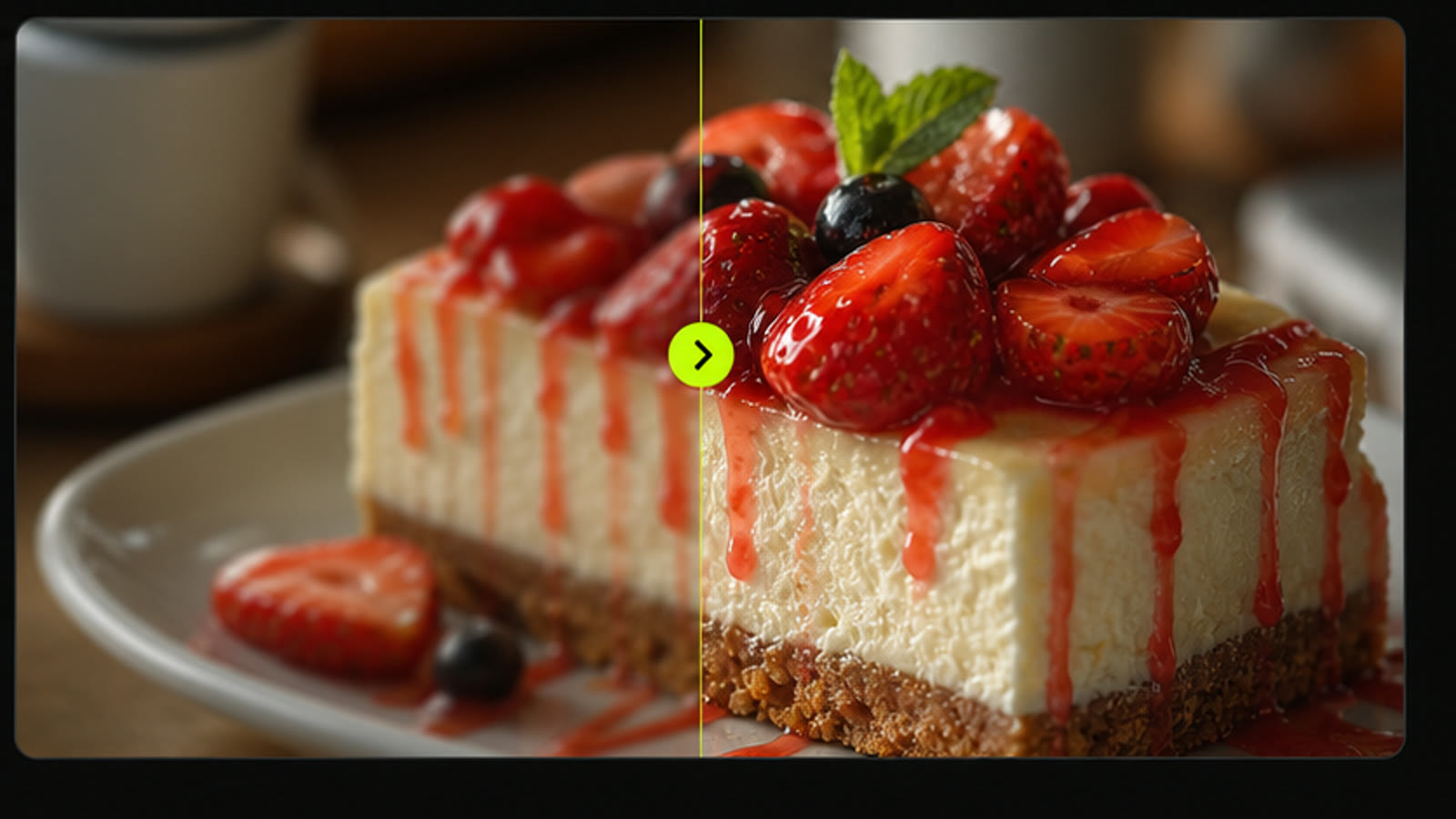
Keep Image Upscaling Credit-Aware
The current AI image upscaler flow uses 5 credits for each submitted image. That makes it a practical cleanup step for selected assets rather than a promise of unlimited multi-image runs or a full photo editing suite.
AI Image Upscaler Questions
- The AI image upscaler is a utility for uploading one image and generating a cleaner version. It is intended for selected assets that may become thumbnails, product visuals, profile images, reference frames, or other still-image outputs.
- Yes. Use it to improve image quality before you use a still as a visual reference, product visual, profile image, thumbnail, or first frame. It is especially useful when you want a cleaner image without rewriting the scene or changing the subject.
- The current AI image upscaler page accepts one image per task. That keeps the workflow focused and avoids claiming multiple-image runs before the public page supports them.
- The current Image Upscale task is configured at 5 credits per submitted image. The page should show this plainly so creators can choose when an upscale pass is worth running.
- The current page labels the task at about 15 seconds in configuration. Actual processing can vary by queue and provider availability, so the public copy should set expectations without promising a fixed completion time.
- No. The upscaler focuses on improving a source image. The AI image editor is better for changing content, background, or style. Many image tasks can use both tools in sequence.
- Use a photo upscaler when a still frame is important but looks too soft for a product page, profile layout, thumbnail, reference board, or editing input. For most users, the first reason to upscale is still-image reuse.
- Product shots, portraits, generated concept images, social thumbnails, and reference frames may benefit when the source is close to usable but needs a cleaner version before review.
- The page should position the AI image enhancer around clarity and source quality, not content editing. If the user wants to change objects, background, or style, they should use an editor workflow.
- The AI image upscaler targets image-intent traffic because clean still assets often become product frames, thumbnails, references, profile visuals, editing inputs, or polished visual drafts.
Related Clipin tools
Continue from this tool into the adjacent generator, editor, or pricing page.